Configuring SIP Interfaces

Contents
The codec supports dialing over two SIP interfaces simultaneously.
|
Important Notes: 1.SIP1 is enabled and configured to use LAN1 by default, which is mapped to the Primary Via interface by default. 2.SIP2 is enabled and configured to use LAN2 by default, which is mapped to the Secondary Via interface by default. 3.SIP1 and SIP2 each need to use a separate IP interface when connecting, e.g. LAN1 or LAN2. 4.SIP1 and SIP2 can however each make multiple SIP calls, e.g. two calls can be made over SIP1, or two calls can be made over SIP2. |

To configure SIP1 or SIP2:
1.Press the HOME  button to return to the Home screen and tap Settings
  .
.
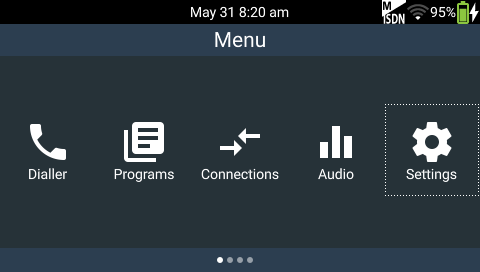
2.Tap SIP to expand the menu and then tap Interfaces.

3.Tap SIP1 to configure the first available SIP interface.

4.Tap to select and edit any setting, then tap to select the Via, i.e. the interface used to dial over SIP1 or SIP2.

5.Tap Public IP Address if you want to dial over SIP from behind a firewall. Enter the public IP address here and then configure port forwarding to route traffic to the codec's local IP address behind your firewall.

6.Tap Save in the top right-hand corner of the TOUCH SCREEN to save all the configured SIP interface settings.

7.Tap to enable the interface you have just configured so that it can be used to make a SIP call.

|
Important Notes: The settings for SIP1 and SIP2 cannot be edited if the interface is enabled. |