Fuse-IP is a proprietary Tieline IP bonding technology allowing a user to aggregate data by bonding multiple IP interfaces (peers) and establishing a “tunnel” between two Tieline codecs. A streaming connection can be established after the tunnel is created. Fuse-IP automatically distributes data over any two bonded interfaces, which may include:
•2 USB modems.
•A USB modem with built-in Wi-Fi.
•Dual Ethernet LAN ports.
•An Ethernet LAN port with either Wi-Fi or a USB modem.
There are several benefits in using Fuse-IP to aggregate data from multiple IP interfaces, including:
•The ability to create more stable connections with higher overall data bandwidth.
•Greater choice of encoding algorithms because of higher available bandwidth.
•Redundancy in case one IP connection is lost.
How does Fuse-IP work?
Fuse-IP is another Via interface you can use to dial, similar to selecting a LAN port or Wi-Fi.

Fuse-IP requires one codec to be a server and the other codec is the client. Normally the remote codec is configured as the client and the studio codec is the server, because it's easier to dial static IP addresses configured at the studio than cellular or Wi-Fi interfaces at the remote site. Like SmartStream PLUS redundant streaming, you can use two IP interfaces at the studio for additional redundancy.
Prerequisites
ViA codecs using Fuse-IP can connect to the Tieline Genie, Merlin and Bridge-IT codec families. Version 2.16.xx firmware is required to use Fuse-IP in these codecs. Before configuring Fuse-IP you need:
•The IP address (or addresses) for the codec acting as the server at the studio.
•The serial number of the server codec to which you are connecting using Fuse-IP.
Configuring Fuse-IP
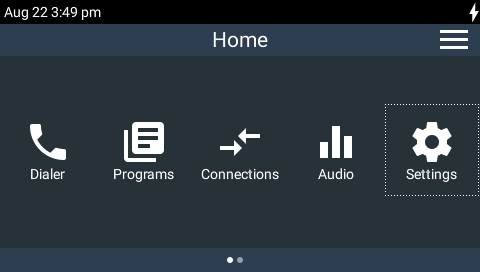
1.Press the HOME  button to return to the Home screen and tap Settings
  .
.
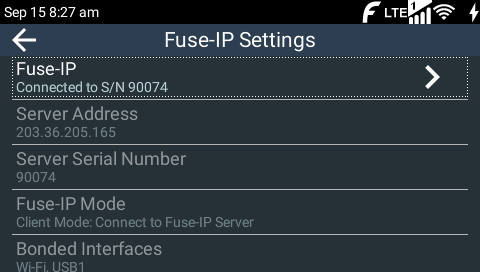
2.Tap Transport Interfaces to expand the menu if it is not displayed, then tap Fuse-IP  to configure module settings.

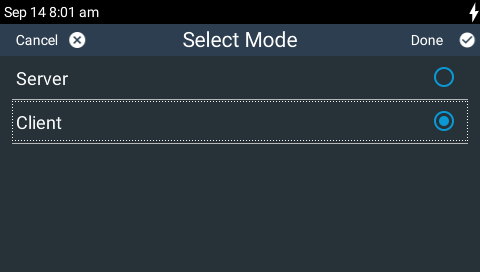
3.Configure the Fuse-IP Mode as Client.

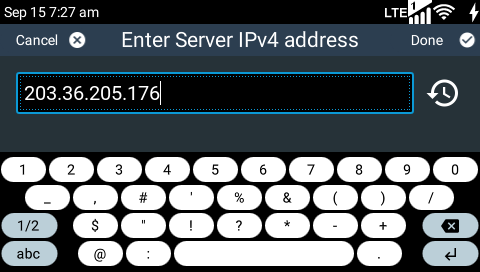
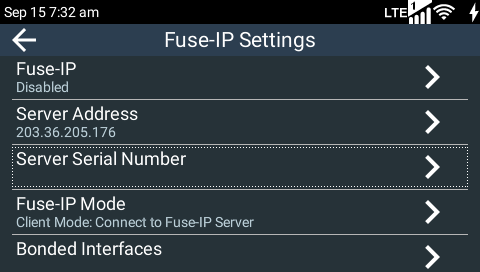
4.Tap Server Address to enter a public static IP address associated with the bonded interfaces at the studio, then tap Done in the top-right hand corner of the TOUCH SCREEN. Note: if the bonded interfaces have private addresses behind a firewall then port forwarding needs to be configured. See Installing the Codec at the Studio for more details on port forwarding.
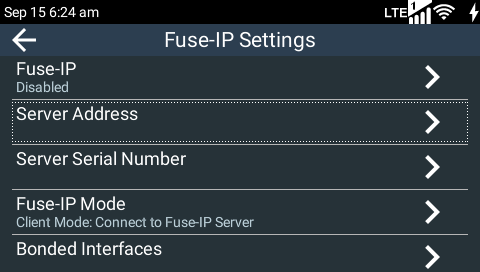
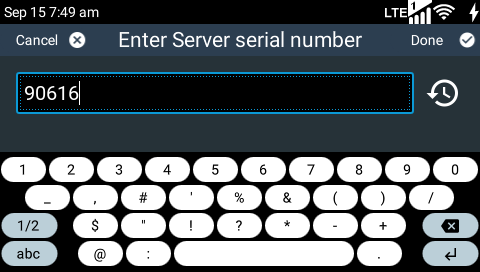
5.Tap Server Serial Number and enter the serial number of the server codec to which you are connecting, then tap Done in the top-right hand corner of the TOUCH SCREEN.
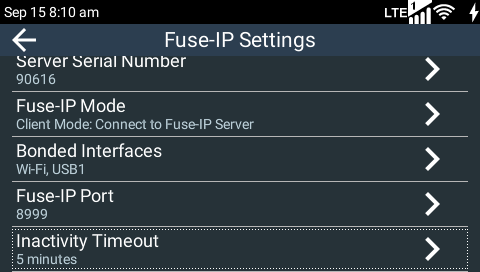
6.Tap Bonded Interfaces and then tap the On/Off button for the interfaces you want to bond. Next, tap Save in the top-right hand corner of the TOUCH SCREEN.


7.Leave the default Fuse-IP Port as 8999 in most situations unless this port is already in use, e.g. you have multiple codecs behind a firewall using Fuse-IP, therefore you need to allocate a different port for each Fuse-IP tunnel. Note: the port number on the client and server codecs must be the same.

8.Tap Inactivity Timeout if you want to turn the Fuse-IP tunnel off after a predetermined time period to save data, then click Save. Note: Inactivity Timeout can be configured from 0 to 1440 minutes. Enter 0 to disable the timeout.
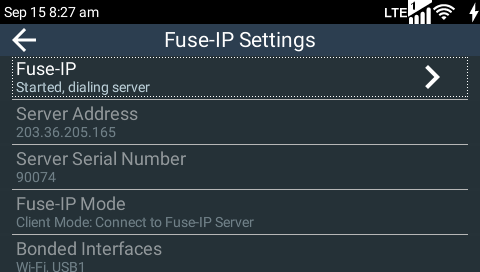
9.Tap Fuse-IP to create a Fuse-IP tunnel between the server and client codecs. The Fuse-IP symbol is displayed in the Status Bar to confirm the two codecs have created an IP tunnel. Remember Fuse-IP must be enabled on both codecs. Please note: double-check all settings on both the server and client codecs if the message Started, dialing server... persists after turning Fuse-IP On.
10.Select Fuse-IP as the Via interface with which to dial when creating a program in the HTML5 Toolbox Web-GUI Program Manager panel or the Dialer  .
.
|
Important Notes: •Data is sent by the codec over the newly created 'tunnel' as soon as Fuse-IP is enabled, even if a connection has not been configured and dialed. Depending on the number of interfaces being used, the codecs may transmit and receive up to 24MB of data per hour at each end of the link. •The codec remembers the Fuse-IP enabled/disabled state on power up •For additional stability it is recommended that a fixed jitter buffer is configured when streaming using Fuse-IP. The actual jitter buffer depth should account for the difference in delay between the interfaces and the maximum jitter experienced. To determine the jitter over each link you can connect and stream audio over each interface separately and look at the jitter reading displayed on the Connection Statistics screen. •Use a dotted quad IPv4 address when configuring the Fuse-IP Server Address. •Fuse-IP cannot be configured as a default Primary, Secondary or Tertiary Via. |