Creating Rules

Contents
The Rules panel in the HTML5 Toolbox Web-GUI is used to configure events for specific codec actions. Typically these 'rules' are based on a change in the state of a GPIO control port or the codec being connected or disconnected. Rules can only be created while the codec is not connected and streaming.
|
Important Note: Data must be enabled to allow contact closure operation and transmission of RS232 data. It is disabled by default and can be enabled using the codec's TOUCH SCREEN by selecting Home screen > Dialer > Auxiliary Data > On. For more information please see Enabling Relays & RS232 Data. |

Configuring Rules
Default rules have been preprogrammed into the codec to facilitate programming the most common events required by broadcast engineers. To view rules options:
1.Open the HTML5 Toolbox Web-GUI and click Rules in the Menu Bar to display the Rules panel.
2.Click Add New Rule.
3.Click to select the appropriate rule for your requirements. See the Rules panel section in Using the HTML5 Toolbox Web-GUI for an explanation of the action each rule can perform.
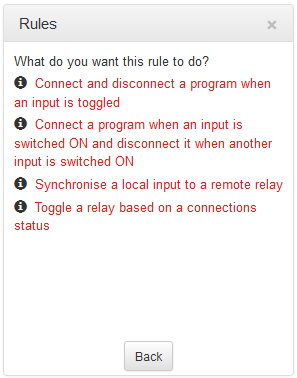
Note: When rules have been configured previously they are displayed when the Rules panel is opened.
Rule 1: Toggle a Control Port Input to Connect and Disconnect a Program
This rule is used to connect and disconnect a selected program when a control port input is toggled.
1.Click the first rule in the Rules panel titled Connect and disconnect a program when an input is toggled.
2.Click the drop-down Input arrow and select the control port input which will trigger program connection and disconnection.
3.Click the drop-down Program arrow to select the program to be connected.
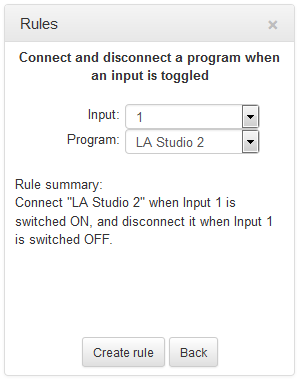
4.Check the Rule Summary and click Create Rule to save the settings.
Rule 2: Switch Different Control Port Inputs On to Connect and Disconnect a Program
This rule is used to connect and disconnect a selected program when different codec control port inputs are turned on.
1.Click the second rule in the Rules panel titled Connect a program when an input is switched ON and disconnect it when another input is switched ON.
2.Click the drop-down arrows to select the control port input used to connect and the alternative input for disconnecting.
3.Click the drop-down Program arrow to select an individual program, which will be connected and disconnected by the change in the control port input states.
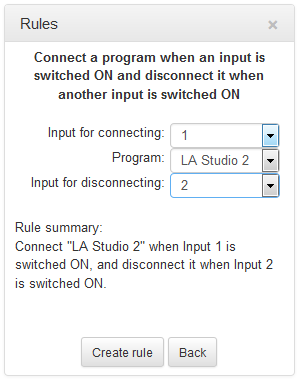
4.Check the Rule summary and click Create Rule to save the settings.
Rule 3: Synchronize Local Control Port Input Status with a Remote Relay Output
Use this rule allow a local codec's control port input to change the state of a remote relay output.
1.Click the third rule in the Rules panel titled Synchronize a local input to a remote relay.
2.Click the drop-down arrow to select the local control port input used to control a remote relay output.
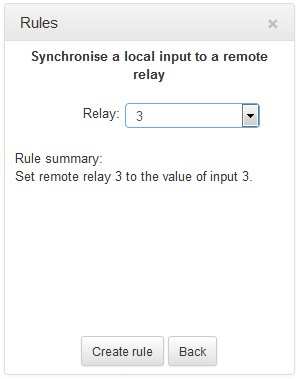
3.Check the Rule summary and click Create Rule to save the settings.
Rule 4: Toggle a Relay Output with each Change in Connection Status
This rule is used to toggle a codec's control port relay output each time a program connects and disconnects.
1.Click the fourth rule in the Rules panel titled Toggle a relay based on a connection's status.
2.Click the drop-down Relay arrow and select the relay output you want to toggle.
3.Click the drop-down Program arrow to select a specific program which will affect the relay toggle function, or use the default setting whereby any program will toggle the relay output.
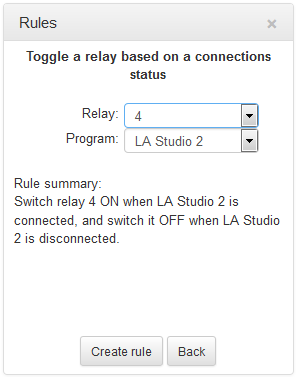
4.Check the Rule summary and click Create Rule to save the settings.
Deleting Rules
1.Open the HTML5 Toolbox Web-GUI and click Rules in the Menu Bar to display the Rules panel.
2.Click to select the rule you want to delete.
3.Click the Delete button.
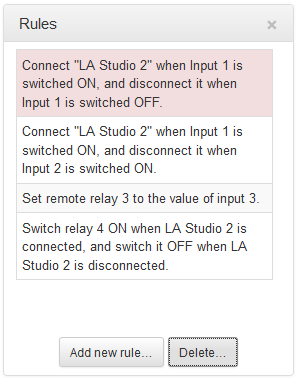
4.Click Yes in the confirmation dialog.