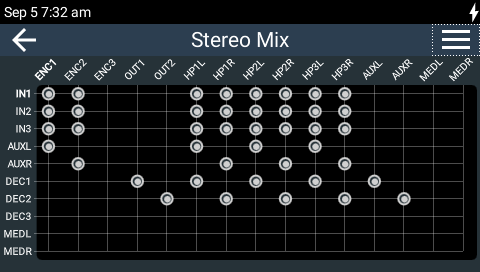
The matrix editor in the codec allows any input to be routed to any output. Default routing settings are configured for each program type and these default matrices can be edited and saved as custom matrices. Custom matrices can be recalled as required. All saved custom matrices are available if a compatible program is loaded. If a matrix is not compatible with a program type it will not be visible in the menu, e.g. a saved stereo matrix is not visible when a mono program is loaded.
Custom matrices can be created and saved and then backed up with program and scheduler data. This allows them to be copied between codecs by using the Backup and Restore feature.
|
Important Notes: •If you create custom headphone mixes, save them, and then save the overall mix in the Matrix Editor, all the custom headphone mixes and their Send/Return balance settings are also saved along with other codec routing settings. •Only crosspoint routing settings for XLR and Digital Outputs are stored in a custom matrix. The send/return balance, ganging, output mute and output level settings are not saved. |

Viewing the Matrix Editor
To view matrices open the Matrix Editor by selecting HOME  > Audio
  > Matrix Editor
  . Inputs are listed on the left and outputs are displayed at the top of the matrix.
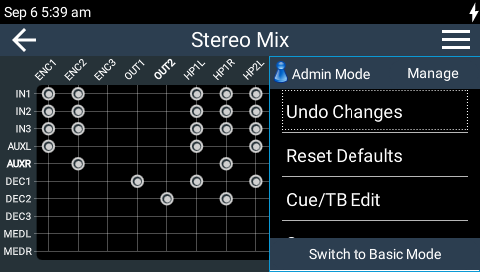
Tap Menu  to view matrix editor options. These options include:
1.Undo Changes: Clears any changes that have not been saved.
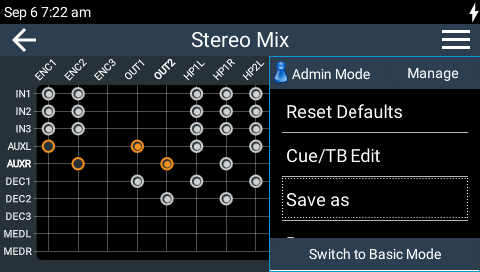
2.Reset Defaults: Resets the matrix to defaults for the currently loaded program.
3.Cue/TB Edit: Opens the Cue/TB Settings screen.
4.Save as: Save the current matrix settings as a new Custom Mix with a unique name (includes headphone and Cue/TB Mix matrices).
5.Browse: View saved Custom Mixes and load them.
View and Edit Cue/TB Matrices
To view the Cue/TB Mix screen from the matrix editor and adjust routing:
1.Press and hold the TB CUE button on inputs 1-3, or the CUE button on the stereo auxiliary input for 3 seconds, or
2.Tap Menu > Cue/TB Edit > Cue 1-3/Aux > Edit .
To learn more about editing cue and talkback matrices see Cue and Talkback Operation.
Matrix Editor Editing
Routing can be adjusted very simply in the matrix editor. When a crosspoint is selected audio is routed from the input on the left to the output at the top. To edit default matrix settings, either:
1.Tap a crosspoint on the TOUCH SCREEN to select or deselect an audio crosspoint, or
2.Use the NAVIGATION buttons to focus on a crosspoint and press the OK button to select or deselect an audio crosspoint.
Any edits take effect immediately in:
1.The Headphone mix accessed by pressing the SOURCE button.
2.The XLR Outputs and Digital Outputs accessed via HOME > Audio > XLR Outputs  / Digital Outputs
  .
.
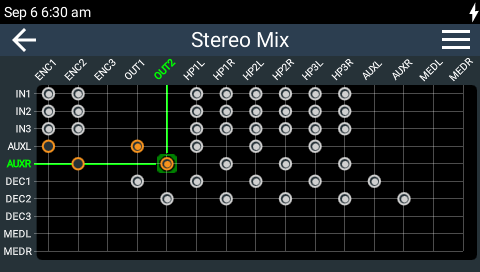
In the following example, the auxiliary input (AUXL and AUXR) have been deselected from the encoder outputs (ENC1 and ENC2) and have instead been routed to the analog XLR outputs (OUT1 and OUT2). Note: Changes not yet saved as a custom mix are displayed in orange. Runtime changes are audible in real-time and persist if the unit is powered down and rebooted.
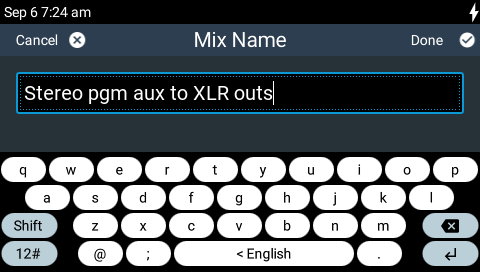
Edits can be saved as a custom mix, which also includes any edits to Headphone, XLR Output, Digital Output or Cue/TB Mix matrices. To save a custom mix:
1.Tap Menu and then Save as.
2.Enter a new Mix Name and tap Done in the top right-hand corner of the TOUCH SCREEN.
3.The new custom mix stays loaded in the codec until a new mix is loaded, an incompatible program is loaded, or program defaults are restored via Menu > Reset Defaults.
|
Important Notes: •If a new program is loaded and it is compatible with the current custom mix then it will remain loaded. If an incompatible program type is loaded, the last compatible mix to suit the new program type is loaded, including any runtime changes made previously. E.g. If a custom stereo mix is loaded and then a mono program is loaded, the last mono mix used will be loaded. •If you make runtime matrix edits to a loaded mono program, then load a stereo program, and subsequently reload the original mono program, the runtime matrix edits are recalled. |
Load, Rename and Delete a Custom Matrix Editor Mix
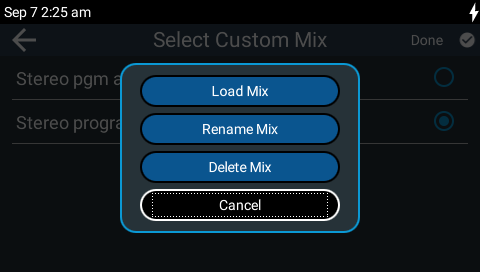
When a new program is loaded it may be necessary to load a new custom mix. It is also possible to rename or delete mixes that are no longer required.
1.Select HOME > Audio > Matrix Editor .
2.Tap Menu and then Browse.
3.Tap to select a saved Custom Mix.
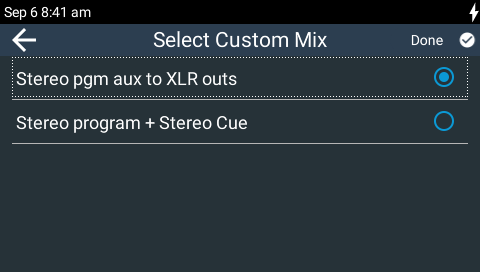
4.Tap to load, rename or delete a Custom Mix.