The SIP Filter Lists panel allows filtering of SIP URIs and User Agents to provide greater security for your codec connections. For example, add trusted network codecs to the URI Allow List in this panel and only codecs using these SIP URIs will be able to connect. This is like saying, "if you have the key you can open the door" and is perhaps the easiest way to filter outside access to your codec's "front door".
It is also possible to add SIP URIs to the URI Block List and add user agents to the User Agent Block List to deny them access to the codec. These block lists also filter unwanted traffic and increase the likelihood of rejecting unwanted traffic. Note: If an incoming SIP caller is not on the URI Allow List it will be scanned using the URI Block List. If there is no match it will be scanned using the User Agent Block List. A connection will be established if there is no match on either Block List.
|
Important Notes: •To only allow a predefined list of codecs to connect, add them to the URI Allow List and add a wildcard (asterisk) * to the URI Block List: all incoming calls will be blocked except for codecs in the URI Allow List. Add a URL to the URI Block List to block traffic from a specific URL. •The SIP filters operate in the following order: 1.Deny if User Agent Block List matches 2.Allow if URI Allow List matches 3.Deny if URI Block List matches •Four simple wildcards for matching are allowed by default: 1.c Any character represents itself apart from those mentioned below. 2.? Matches any single character. 3.* Matches zero or more of any characters. 4.[...] Sets of characters can be represented in square brackets. |

Filter URIs and User Agents
1.Open the HTML5 Toolbox Web-GUI and click Transport in the Menu Bar, then click SIP Filter Lists to launch the SIP Filter Lists panel.
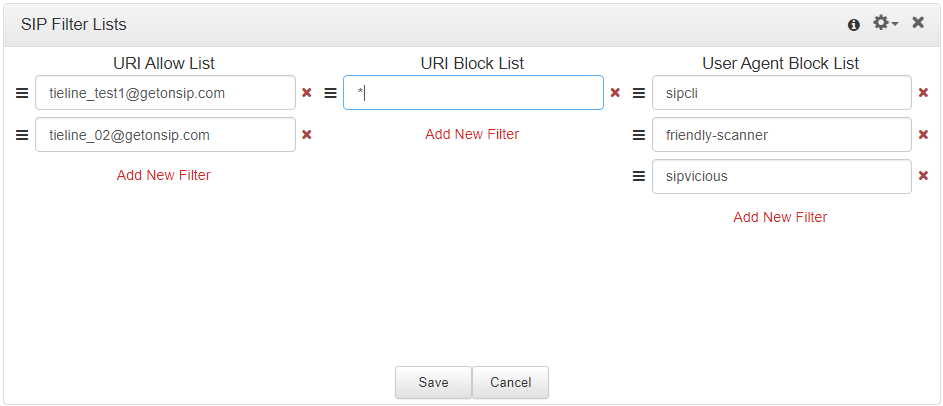
2.Click the Plus symbol  for URI Allow List, URI Block List or User Agent Block List to add a new item to the list.
3.Enter the new item in the text box, click to select the check-box and then click Save to store the new setting.
4.Click the Undo symbol  to undo editing and click and drag the List symbol
  to shift the position of allow list and block list items.
|
Important Notes: •Some codec manufacturers allow calls based on 'User Agent' identification. It may be necessary to enter a Tieline codec user agent into a non-Tieline codec to connect to a Tieline SIP-enabled codec. •From firmware v2.16.xx the user agent in the codec is configured as "Tieline <Product Name> <Firmware Version>". E.g. Tieline Bridge-IT v2.18.68 •User agent for Report-IT SIP connections: Tieline Report-IT EE (3.5.6_2894). Note: In this example "3.5.6" is the Report-IT version number and "2894" is the build number. •In Tieline G3 codecs the user agent is configured as "Tieline <Product Name> <Serial Number>". E.g. Tieline TLR350 8972. The model numbers for Tieline G3 codecs are as follows: oCommander G3 Rack TLR300 = Model Number TLR300 oCommander G3 Rack TLR300B = Model Number TLR350 oCommander G3 Field TLF300 = Model Number TLF300 oi-Mix G3 TLM600 = Model Number TLM600 |
Using Regular Expressions
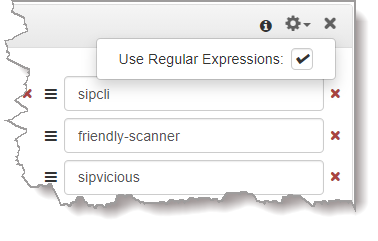
To filter using regular expressions in the SIP Filter Lists panel, click the Options symbol  in the top right-hand corner of the panel and then click to select the Use Regular Expressions check-box.
|
Important Note: Regular expressions should not use ^ and $ anchors because searches implicitly try to match anywhere in the line. |