SIP programs are very similar to how a normal Tieline IP program is configured. The codec supports dialing over SIP using a registered SIP server account, or peer-to-peer using one of the two SIP interfaces SIP1 and SIP 2. It is also necessary to select SIP as the Session Protocol.
To configure a SIP multiple stream program simply create a new program and configure each SIP audio stream like a single SIP Peer-to-Peer program. The codec is capable of registering up to 16 SIP accounts, each of which has an associated Answer Route field, which can be matched to a loaded answering program's audio stream Answer Route. Without using SIP accounts, each SIP interface also has an Answer Route field. However, only 2 SIP interfaces are supported, limiting this method of routing configuration to a maximum of 2 audio streams. Note: An account's Answer Route setting is applied first.
|
Important Notes: Before commencing program configuration please note: •You cannot edit a program when it is currently loaded in the codec. •Some drop-down menus and settings may be greyed out intentionally depending on features available. •Failover is not available with SIP and SmartStream PLUS redundant streaming is not available with SIP or sessionless IP. •Lock a loaded custom program or multistream program in a codec to ensure it cannot be unloaded by a codec dialing in with a different type of program. For example, if a multistream program is not locked it will be unloaded by a mono or stereo call. •Ensure the appropriate TCP and UDP audio ports are open in your firewall to allow SIP audio streams to connect. See Installing the Codec at the Studio for more information. |

1.Open the HTML5 Toolbox Web-GUI and click Connect in the Menu Bar, then select Program Manager to launch the Program Manager panel.
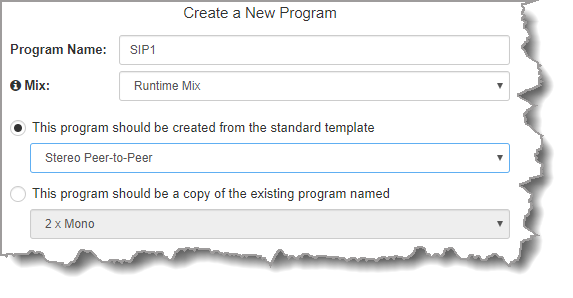
2.Click the New Program button to open the wizard and:
•Click in the text box to name the new program.
•Click the Mix drop-down arrow to associate a custom matrix mix with the program if required.
•Select Mono/Stereo Peer-to-Peer, or if you want to use an existing program as a template, select this option. Then click Next.
|
Important Notes: When you use an existing program as a template, the new program inherits all the settings of the template program and you can adjust these settings as required by continuing through the program wizard. |
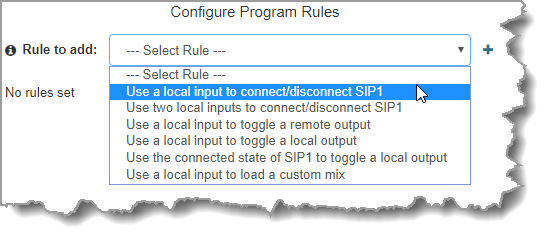
3.To configure new program level rules click the drop-down arrow and select the preferred option from those available. Click the blue Plus symbol  to add a new rule and click the Minus symbol
  to remove a rule.
|
Important Notes for Rules: •The Gateway 4 codec has 8 hardware GPIOs and 56 logical outputs, and the Gateway 8/16 has 16 hardware GPIOs and 48 logical outputs; both codecs also have 3 virtual inputs, and 64 Livewire GPIOs, or 64 WheatNet Logic Inputs/Outputs. (WheatNet logic I/Os allow Tieline WheatNet-IP enabled codecs to activate functions across a WheatNet-IP network. WheatNet logical inputs are only available if a codec has a WheatNet-IP card installed). See Enabling Relays & RS232 Data for more info. •A non-WheatNet-IP Tieline codec can be configured to trigger a WheatNet LIO in a Tieline WheatNet-IP codec. •Tieline WheatNet-IP codecs require Wheatstone Razor firmware version 1.4.22 or later to support WheatNet LIOs. In addition, the WheatNet-IP codec must have the WNet Enable LIO checkbox selected in the Options panel of the HTML5 Toolbox Web-GUI. •The Enable Livewire GPIO checkbox must be selected in the Options panel of the HTML5 Toolbox Web-GUI to use Livewire GPIOs. •Relay reflection is not available for SIP and Multicast Client programs. •Connection-related rules are not displayed in Answer only audio streams. •Program level rules intended to activate dialing are not valid in Answer only programs or audio streams. •For more details about rules see Creating Rules. |
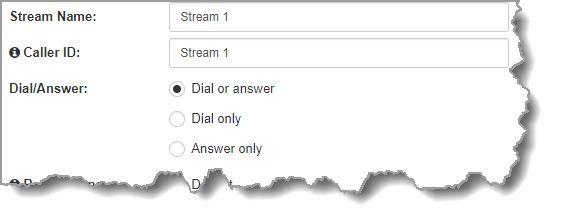
4.Enter the Stream Name and configure the codec to dial, answer or dial and answer. Then click Next.
Note: The following example will display how to configure a dial and answer program. If you want the codec to either dial or answer only, select the option and the wizard will automatically display screens to allow you to configure the codec correctly. Please note that caller ID, dial routes, TieLink, and G3 profile or G3 channel information can not be used for SIP connections because Tieline session data is replaced by SDP for SIP connections.
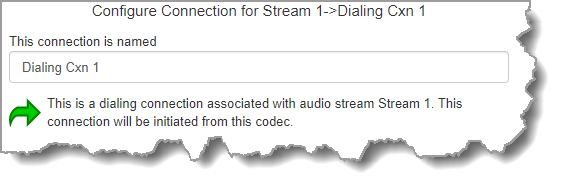
5.This audio stream connection in the wizard will allow the codec to dial. Enter the name of the connection in the text box, then click Next.
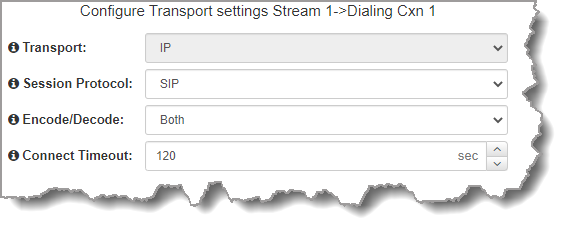
6.Configure the transport settings for the connection. Ensure that you select:
•IP as the Transport.
•SIP from the Session Protocol menu option.
Then click Next.
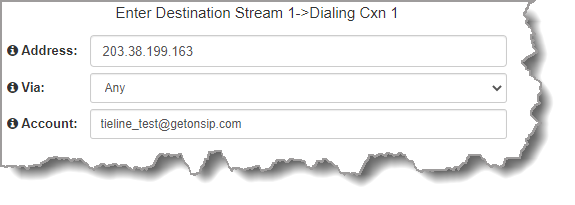
7.Configure the destination codec Address if you are dialing peer-to-peer, then specify the network interface used to dial the connection, e.g. Primary (Ethernet port 1). Enter the name of a registered SIP account if you are using a SIP server to establish a connection. If you wish to dial from one of the codec's registered accounts, then enter the account name in the Account field using the format accountname@sipserverdomain, e.g. tieline_test1@getonsip.com. In this configuration the account interface will be used rather than the specified Via, e.g. if the account is using SIP2 and this is configured to use LAN2, then the call will proceed using LAN2. If you do not wish to use an account for the dial then leave the Account field blank and select the required interface. Note: the interface must be associated with either SIP1 or SIP2 for the call to be able to proceed.
At this point you can click Save Program and save the program with default algorithm and jitter settings. Alternatively, click Next to confirm and specify algorithm and jitter settings for this connection and configure backup audio settings (recommended).
|
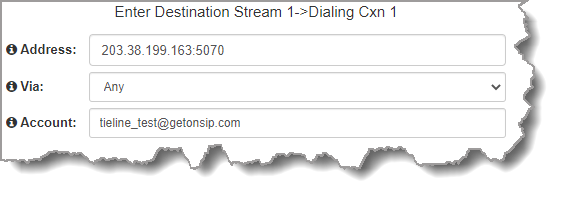
Important Notes: •The default UDP audio port when using SIP for a peer-to-peer connection is 5004 in Tieline codecs. To contact a codec that is behind a firewall or NAT-enabled router, it is essential that this and all other relevant ports are open and forwarded to the other device. •Tieline codecs automatically add "sip:" to the address you enter in the Address field when dialing, so it's not necessary to add this. •Enter the IP address or SIP URI, then a full colon and the session port number to change the session port from the default setting 5060.
|
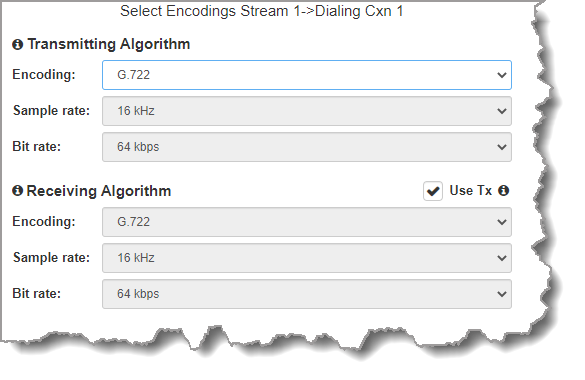
8.Click the drop-down arrows on the right-hand side of each active drop-down menu to adjust the Encoding, Sample rate or Bit rate parameters. Click Next to continue.
9. Click to configure:
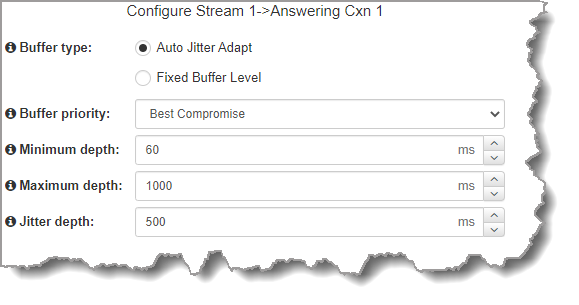
•Auto Jitter Adapt and the preferred auto jitter setting using the drop-down arrow for Buffer priority. It is also possible to configure the Minimum depth and Maximum depth of jitter over the connection. See Configuring the Jitter Buffer for more details.
•Alternatively, select a Fixed Buffer Level and enter the Jitter Depth, which must be between 12ms and 5000ms depending on the algorithm you select.
•RFC-compliant FEC can also be configured if required and the percentage is configurable.
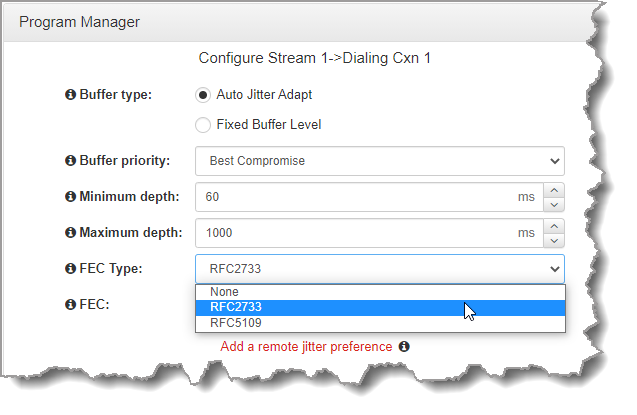
10.Click Add a remote jitter preference to send preferred jitter settings to a remote codec. Note: this is just a preference as per EBU Tech 3368 and there is no guarantee that the remote codec will accept or support these jitter configuration settings. Verify configuration settings on the remote codec to ensure settings are correct. Recommended jitter buffer limits are as follows:
•1,000ms for PCM and G.711, G.722 and aptX Enhanced encoding.
•2,500ms for AAC ELD, AAC LD.
•5,000 for all other algorithms including Opus, MP2, AAC, AAC-HE, Tieline Music and Music PLUS.
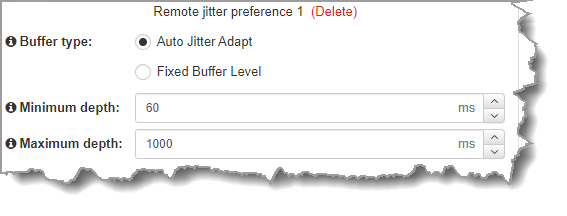
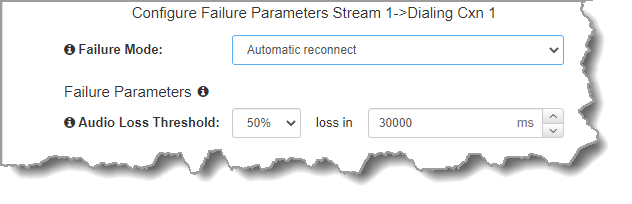
11.Click Next to select the check-box if you want to Enable Auto Reconnect.
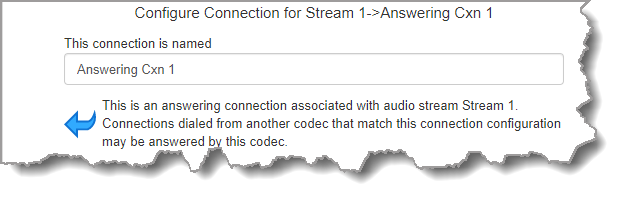
12.Click Next to name the answering connection for when calls are received by the codec.
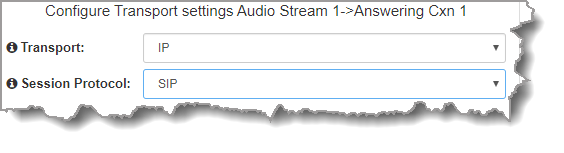
13.Click Next to configure the Session Protocol as SIP for the answering connection to receive a SIP call.
14.Click Next to configure the jitter buffer settings for the answering connection. Note: it is also possible to configure remote jitter preferences if the remote codec supports RFC5109.
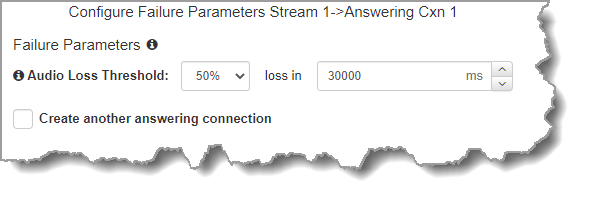
15.Click Next to configure Failure Parameters for the answering connection if required. Please note: In most situations the default answering Failure Parameters do not need adjustment. These settings may be useful to troubleshoot certain connections, e.g. satellite IP links.
16.After configuring all settings there are 3 options:
i.If you want to create another answering connection, select the check-box for Create another answering connection and continue through the wizard.
ii.Click Save to save the program at this point.
iii.Click Next to configure Output Audio Source options.
Configuring Output Audio Source Options
1.Click Next to configure Output Audio Source options and automatically switch between up to 4 backup audio sources to maintain program
audio at transmitter sites. Output Audio Source options include:
•Connection: Decoded connection audio sent from a remote codec (Note: this must be selected as one of the configured sources).
•Input: Input audio looped to the physical codec outputs.
•HTTP: Icecast client mode to allow media server streaming from a specified URL.
•File Playback: Audio file playback from a supported storage medium.
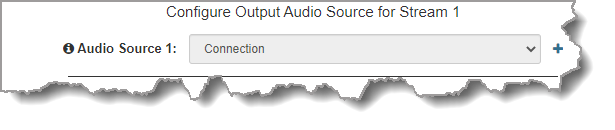
2.Click the blue Plus symbol to add a backup Output Audio Source, or click the Minus symbol to remove an Output Audio Source. Click the drop-down arrow to select an Output Audio Source option.
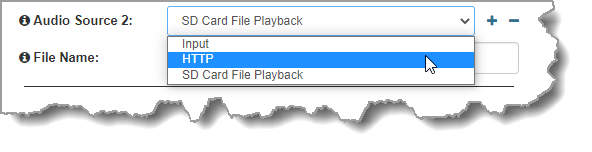
3.Configure silence threshold parameters for enabling a preferred backup option, as well as resume thresholds for reactivating a previous source. Then click Save Program to save program settings.
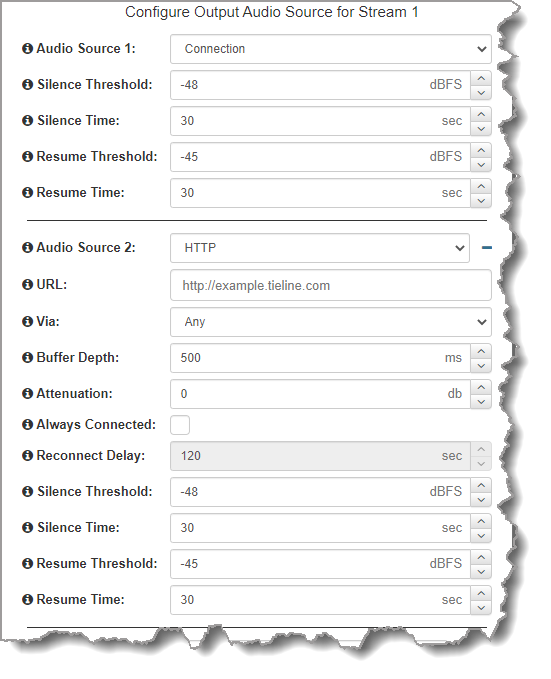
4.After configuring Output Audio Source options you can:
i.Click Save Program to save the program at this point.
ii.Click Next to configure rules options.
|
Important Notes for File Playback: •A single partition FAT32 formatted SDHC Card is required (SD cards may be less reliable and are not recommended). •The codec supports SDHC cards which have a physical capacity of up to 32GB. Note: The Windows built-in formatting tool cannot format a SD card larger than 32GB with the FAT32 file system. •Create MP2 or MP3 files using a 32kHz, 44.1kHz or 48kHz sample rate. •Ensure recordings are not variable bit rate files. •SDHC file audio is not sent to codec encoders and cannot be transmitted via an audio stream to another codec. •File playback audio is sent directly to the codec outputs and therefore IGC is not available. When you create your MP2 or MP3 files ensure the audio levels match the audio reference level of your codec and that peaks average at the correct levels. •If you create a single file name ensure you add the file extension, e.g. "test.mp3", or the file will not play back. •If you create a directory name, all the files within the directory will be played back. We recommend you save all audio files as a playlist and link to this if you want them to play out sequentially. Please note that "M3U" is the playlist file format supported by the codec. •File playback will occur automatically if the silence threshold parameters are breached. To manage file playback open the Connections panel in the web-GUI. |
Configuring Rules
1.To configure new stream level rules click the drop-down arrow and select the preferred option from those available. Click the blue Plus symbol to add a new rule and click the Minus symbol to remove a rule.
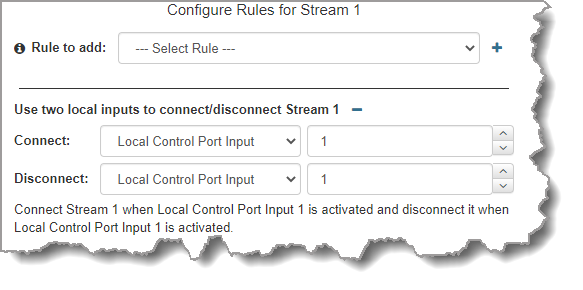
|
Important Note: Program level rules intended to activate dialing are not valid in Answer only programs or audio streams. |
2.Click Save to save the program.
3.Click Finish to exit the wizard.
4.The newly created program can be loaded from within the Program Manager panel, Connections panel and the Program Loader panel (in the Quick Connect web-GUI). Select and connect audio streams in a program using the Connections panel, or connect the program manually using the front panel.