Product |
Feature |
Notification |
Gateway 4 |
Livewire streams |
Supports up to 4 mono or two stereo streams |
Gateway 8/16 |
Livewire streams |
16 channel Gateway supports up to 16 mono or 8 stereo streams; 8 channel Gateway supports up to 8 mono or 4 stereo streams; |
Livewire Compatible Destinations: Receiving a Livewire+ Stream
The Livewire tab in the Destinations panel lists all available Livewire+ Sources.
Configure a Destination using the Livewire Tab
The Livewire tab displays available Livewire+ Sources alphabetically. At the top of the tab there are search fields to filter available Sources. Note: A progress bar may be displayed if a very large number of network streams need to be populated in the tab.
•The Name is the name of the stream.
•The Address is the multicast IP address used to create the Destination stream.
•The Channel is the unique channel number used by Livewire to identify streams.
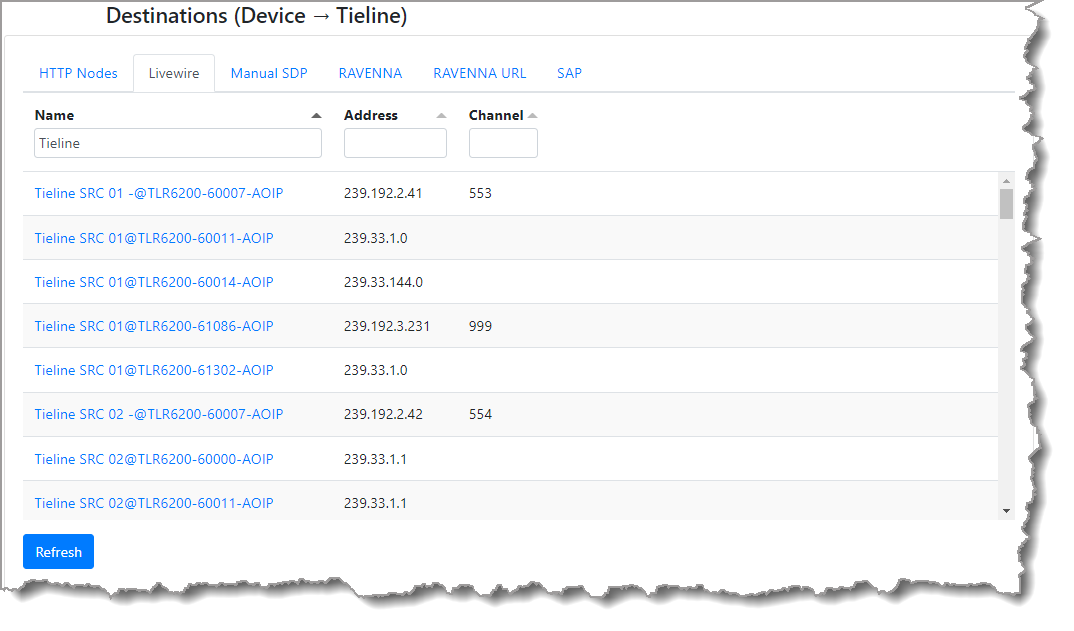
To configure a Destination using the Livewire tab:
1.Click Refresh to display all available Livewire Sources advertised on the AoIP network.
2.Select the Name of the preferred Livewire Source. Note: When a Source is selected, SDP data is fetched, parsed and populated in the fields within the Destinations panel. A message at the bottom of the Livewire tab confirms that SDP has been successfully applied.
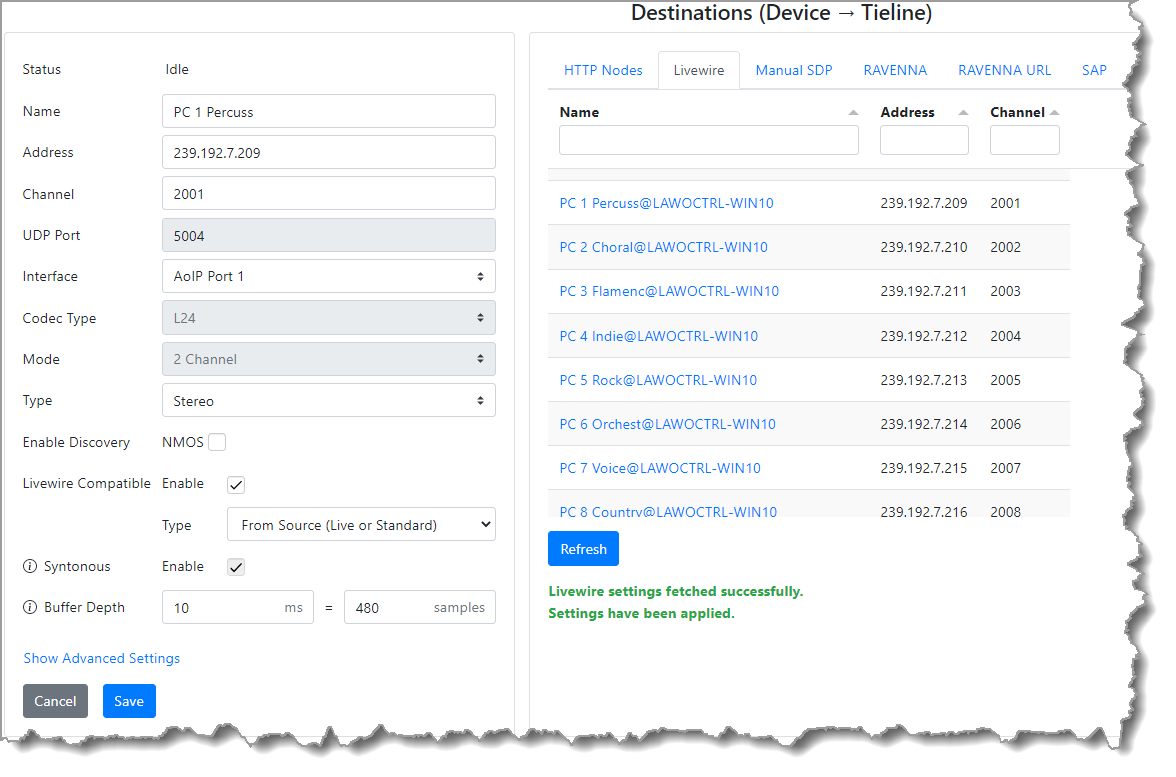
3.Click Save to store the new Destination settings.
Livewire Compatible Stream Type
The Livewire Compatible stream Type is typically configured when a Livewire stream is parsed using the Livewire tab. It can also be manually configured using the Type drop-down menu.
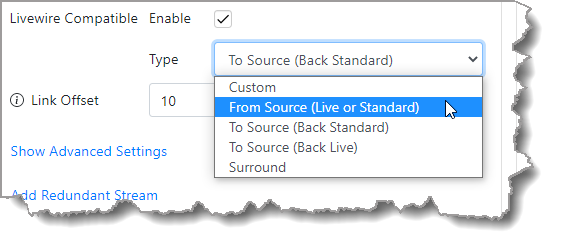
Type drop-down menu
A stream type can be defined as:
1.Custom: This is an AES67 mode that allows you to override and modify Livewire settings which are non-standard.
2.From Source: Also known as Livestream or Standard streams using the Livewire address range 239.192.000.0/15
3.To Source: Also known as Back Standard Stereo Streams using the Livewire address range 239.193.000.0/15
4.To Source: Also known as Back Live streams using the Livewire address range 239.195.000.0/15
5.Surround: Surround streams using the Livewire address range 239.196.128.0/15
Stream type is explained in more detail in the following topic about creating a Livewire+ Source.
|
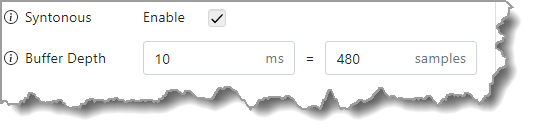
Important Notes: •When a Livewire Compatible stream is configured the Downmix option is only selectable for a Custom stream type. Other stream types are automatically configured. •When configuring a mono Destination stream, if a stereo RAVENNA, SAP or Livewire stream is parsed, then Downmix will be automatically selected for compatibility. •Syntonous receive mode is enabled by default in Livewire Destinations. In Syntonous mode the sampling frequency is locked, but the absolute time reference at the sender and receiver may be different. If you experience streaming issues adjust the buffer depth to suit network latency conditions.
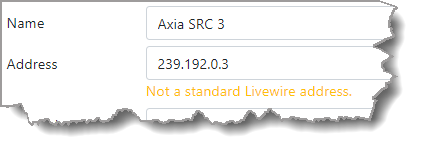
•If a non-standard Livewire address is configured then a message will be displayed below the Address field in the Destinations panel.
|

Livewire Channels
Livewire uses multicast addresses for AES67 and unique addressing Channels for Livewire, which are automatically calculated. Livewire channels range from 0 to 32767.
If we assume a multicast IP address is 239.192.35.48 then the Livewire Channel number is calculated as follows:
IP address = 239.192.35.48
To calculate multiply 35 x 256 + 48 = Channel number 9008
Configure a Tieline Source as a Livewire+ Stream
To advertise a Tieline codec Source as a Livewire+ AoIP stream across an AES67 network it is necessary to:
1.Ensure Livewire as a service is Enabled and Running in the Services panel.
2.Configure Source settings including the Channel number and then enable the Livewire Compatible check-box in the Sources panel.
3.Select the preferred Livewire+ Stream Mode to suit the type of Source being configured.
4.Click Save when all settings are configured.
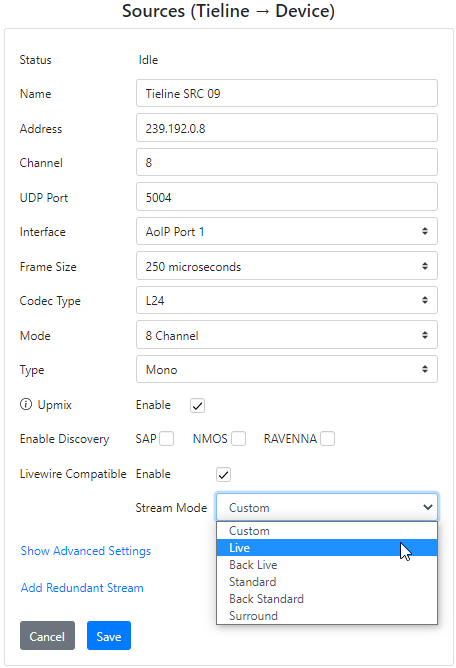
When the stream mode is selected it configures the Livewire address range and packet structures. The settings include:
1.Custom: This is an AES67 mode that allows you to override and modify Livewire settings which are non-standard.
2.Live (also known as Livestream) streams use the Livewire address range 239.192.0.0/15: Total bytes per packet = 72; Core delay = .25ms.
3.Back Live streams use the Livewire address range 239.195.0.0/15: Total bytes per packet = 72; Core delay = .25ms.
4.Standard streams use the Livewire address range 239.192.0.0/15; Total bytes per packet = 1440.; Core delay = 5ms.
5.Back Standard Stereo Streams use the Livewire address range 239.193.0.0/15; Total bytes per packet = 1440.; Core delay = 5ms.
6.Surround streams use the Livewire address range 239.196.128.0/15: Total bytes per packet = 1440; Core delay = 1.25ms.
|
Important Notes: When a Livewire Compatible stream is configured the Upmix option is only selectable with the Custom Stream Mode. Other options are automatically configured. |