Configure Mono or Stereo Peer-to-Peer Programs in ViA

Contents
The Programs panel incorporates a wizard to configure a new program and all audio stream settings. Before you configure a new codec program consider if:
•You want your codec to be capable of dialing and answering, dialing only or answering only.
•A backup connection is required.
This section contains instructions for:
1.Configuring Peer-to-Peer Programs: Dialing
2.Configuring a Backup Connection or Auto Reconnect
3.Configuring Answering Connections
For more information about programs and audio streams within programs see the section titled Load, Connect and Manage Programs. Note: The following connection setup instructions will show how to configure a dial and answer program, with a backup connection. If you want the codec to either dial or answer only, select the option and the wizard will automatically display relevant screens to allow you to configure the codec correctly.
Configuring Peer-to-Peer Programs: Dialing
|
Important Notes: Before you start program configuration please note: •You cannot edit a program when it is currently loaded in the codec. •You can lock a loaded custom program in a codec to ensure the currently loaded program cannot be unloaded by a codec dialing in with a different type of program. •Some drop-down menus and settings may be greyed out intentionally depending on features available and the transport selected (e.g. IP or ISDN). •It is possible to save a program at several points throughout the program wizard and use default settings to save configuration time. •Failover and SmartStream PLUS redundant streaming are not available with SIP or sessionless IP connections. •POTS is not supported for stereo audio stream connections. •To learn more about programs see Load, Connect and Manage Programs. |

1.Open the Java Toolbox Web-GUI and click the Programs  symbol at the top of the screen to display the Programs panel.
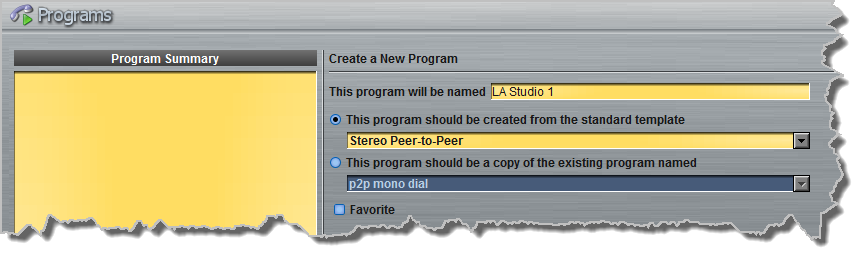
2.Click the New Program button to open the wizard and:
•Click in the text box to name the new program.
•Select Mono/Stereo Peer-to-Peer, or if you want to use an existing program as a template, select this option.
•Click to select the Favorite check-box if you want to add the new program to the list of favorites in the codec, then click Next. See Load, Connect and Manage Programs for more details.
|
Important Note: When you decide to use an existing program as a template, the new program inherits all the settings of the template program and you can adjust these settings as required by continuing through the program wizard. |
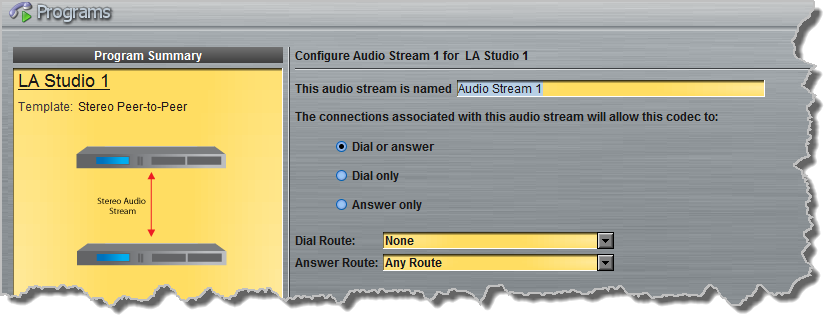
3.Enter a name for the Audio Stream and configure the codec to dial, answer or dial and answer. Then click Next.
|
It is also possible to select a Dial Route or Answer Route if required. When routing multiple audio streams over transports like ISDN or POTS, you can use Dial and Answer Routes to configure deterministic routing of audio streams. Use of Dial and Answer Routes is not recommended over IP. See Configuring ISDN Answering or Configuring POTS Answering for more information. Use the default settings for IP connections. |

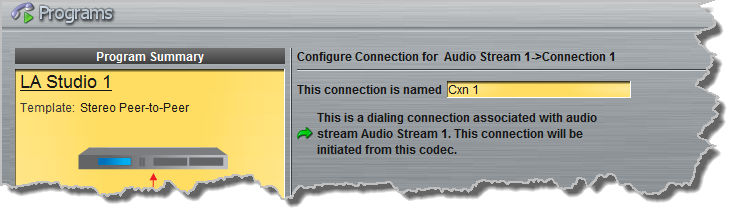
4.This audio stream connection in the wizard will allow the codec to dial. Enter the name of the connection in the text box, then click Next.
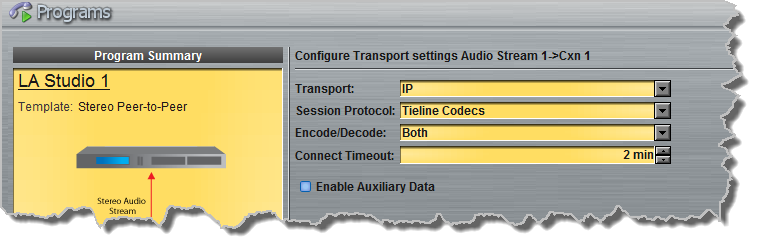
5.Follow the instructions on the right-hand side of the panel to configure the transport settings for the connection, then click Next.
|
Important Note: •If you select Sessionless as the Session Protocol select UDP/IP +RTP for RFC-compliant IP streaming. •See RS232 Data Configuration for detailed information on RS232 data and see Enabling Relays and RS232 Data for more information on relay operations. |
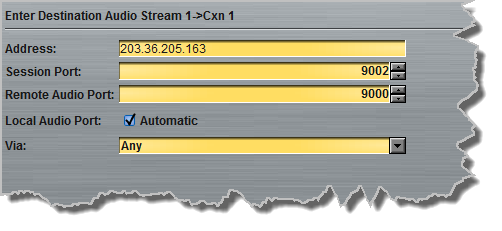
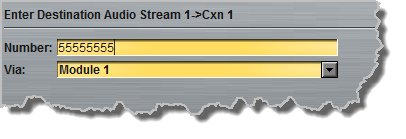
6.Configure destination codec dialing and encoding settings:
|
For IP connections configure the IP address, ports, and then specify which streaming interface (Via) is used to dial this connection, e.g. Primary (LAN1) or Secondary (LAN2) etc. Note: By default Any will first select LAN1 if it is available, or the Secondary (LAN2) or Tertiary (Wi-Fi) interface if it is unavailable.
Click Save Program to save the program with the default algorithm, jitter and FEC settings which are physically entered in the codec. Alternatively, click Next to specify individual algorithm, jitter buffer and FEC settings and configure a backup connection or SmartStream PLUS for this audio stream (recommended).
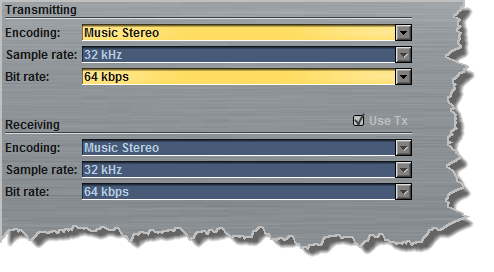
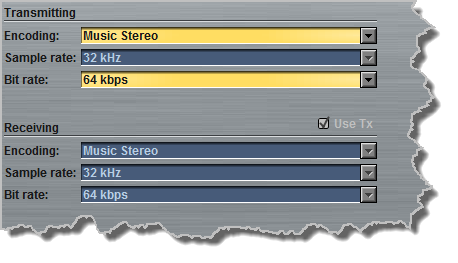
Click the drop-down arrows on the right-hand side of each text box to adjust the Encoding, Sample rate and Bit rate options.
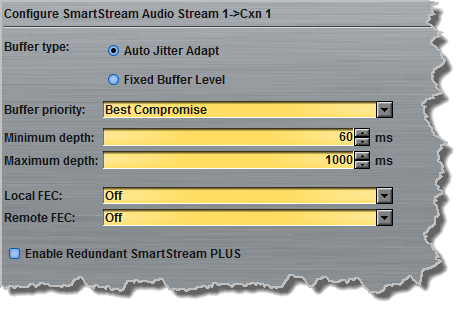
For IP connections click to configure: •Auto Jitter Adapt and the preferred auto jitter Buffer Priority and Minimum depth and Maximum depth settings, or •Fixed Buffer Level and enter the Jitter Depth, which must be between 12ms and 5000ms depending on the algorithm you select. •Local and Remote FEC settings if required.
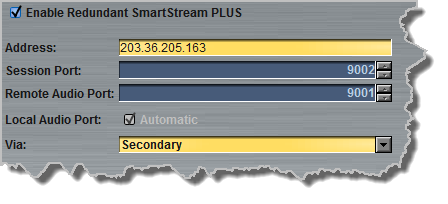
Click the check-box to select Enable Redundant SmartStream PLUS and configure dual Ethernet SmartStream IP streaming in case one IP connection fails. Alternatively, click Next to configure Auto Reconnect or a backup connection, whereby the alternative connection is dialed if the primary connection fails.
By default, Primary IP streaming is via LAN1. Select a different IP interface to achieve the maximum level of redundancy for redundant streaming, e.g. Secondary (from the secondary LAN2 port), or Tertiary, which is configured for Wi-Fi by default. Other USB1 and USB2 interfaces can also be selected. The redundant stream uses Remote Audio Port 9001 by default and the Local Audio Port allocated is Automatic. Note: Automatic indicates that the codec will arbitrarily allocate the local port value and send this information to the codec to which you are dialing.
|


|
Important Note: Dual SmartStream PLUS redundant streaming over separate IP interfaces mitigates lost packets on either link and will provide IP network backup if an IP link is lost. To learn more about SmartStream PLUS redundant IP streaming see http://www.tieline.com/Transports/SmartStream-IP |
|
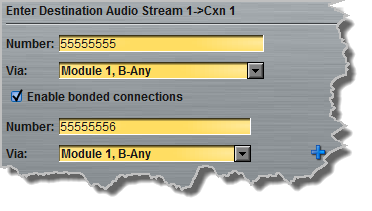
For ISDN connections enter a number and select which B channel to use. Select the Enable bonded connections check-box to configure and bond multiple B channels.
Next, click Save Program to save the program with default algorithm settings, or click Next to specify a different algorithm and configure a backup connection if required. (recommended).
Dialing settings for this ISDN audio stream are now complete. |
|
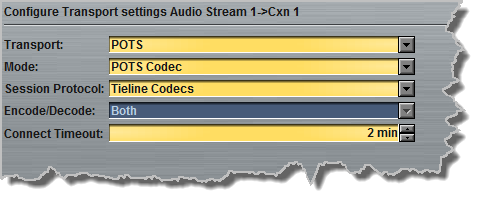
Select POTS Codec in the Mode drop-down menu to encode/decode using POTS, or select Analog Phone to configure a standard analog phone call, then click Next.
Next, enter the phone number of the codec or device you want to dial. Then, click Save Program to save the program with default settings, or click Next to specify algorithm settings and configure a backup connection if required (recommended).
Dialing settings for this POTS audio stream are now complete.
|
Configuring a Backup Connection or Auto Reconnect
At this point in the wizard you can choose to configure Auto Reconnect or create a backup connection for the audio stream you are configuring.
|
Important Note: When Auto Reconnect is enabled, the dialing codec will continue to attempt a connection with the remote codec until Disconnect is pressed either on the dialing codec's keypad, or in the Web-GUI. |
1.Click to select the check-box for Create a Backup Connection. Adjust the parameters and click Next.
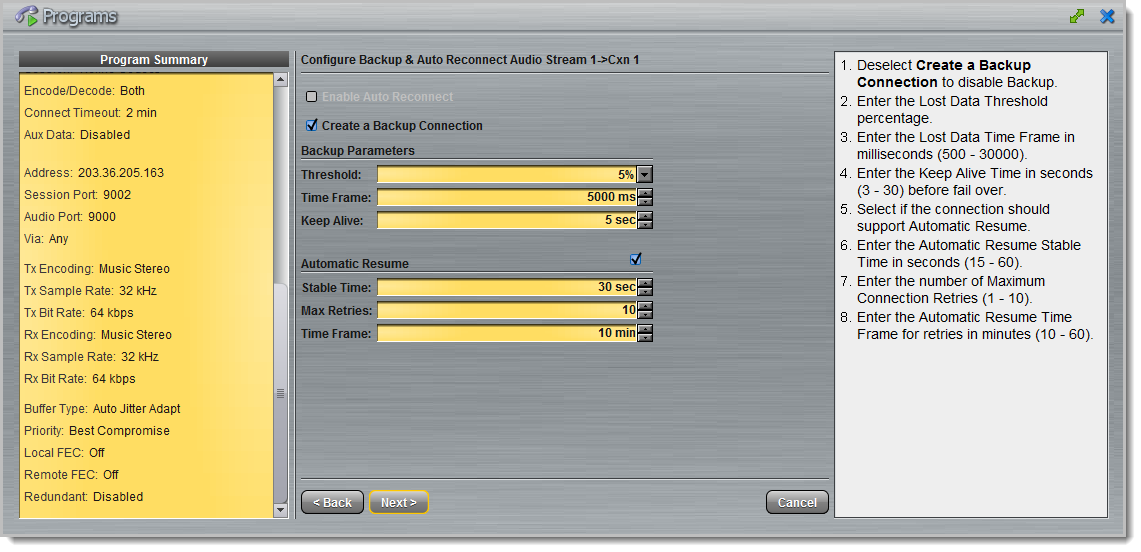
Note: The explanations within the following table can be used to assist with backup connection configuration.
|
Screen Display |
Description |
1 |
Threshold |
The percentage of lost data measured during a given time frame |
2 |
Time Frame |
The time frame against which lost data is measured |
3 |
Keep Alive |
The keep connection alive time before failing over to a backup connection; Tieline RTP pings every second to confirm connectivity |
4 |
Automatic Resume |
Select the check-box to configure fail back to a higher priority connection |
5 |
Stable Time |
The amount of time a primary connection must remain stable before attempting to fail back from the backup connection |
6 |
Maximum Retries |
The maximum number of fail back retries a codec can try before ending fail back attempts |
7 |
Time Frame |
The time frame used to measure the number of fail back retries attempted |
2.Enter a name for the backup connection and click Next.
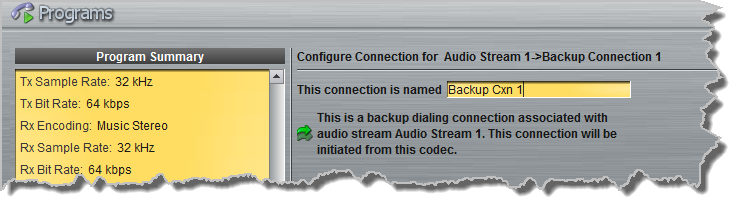
3.Click Next to continue through the wizard and configure the backup connection in a similar manner to how you configured the primary connection.
Configuring Answering Connections
The codec is capable of being configured to accept calls via different transports (e.g. IP and ISDN), or to accept calls using different audio ports. If you are configuring the codec to allow it to answer one or more incoming audio stream connections:
1.Enter a name for the answering connection and click Next.
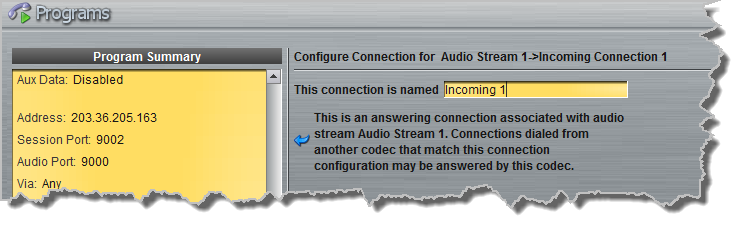
2.Configure the transport settings:
|
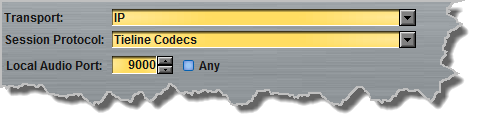
For IP select the Session Protocol and Audio Port, then click Next to configure jitter buffer and FEC settings.
Click to configure: •Auto Jitter Adapt and the preferred auto jitter setting using the drop-down arrow for Buffer Priority, or •Fixed Buffer Level and enter the Jitter Depth, which must be between 12ms and 5000ms depending on the algorithm you select. •Local and Remote FEC settings if required.
|
|
For ISDN, settings are determined by ISDN module answering settings. For more details see Configuring ISDN Answering. |
|
For POTS, settings are determined by POTS module answering settings. For more details see Configuring POTS Answering. |
3.After configuring all settings there are 2 options:
i.If you want to create another answering connection, select the check-box for Create another answering connection and continue through the wizard.
ii.Click Save Program to save the program at this point.
4.Click Finish to exit the wizard.
The newly created program will be displayed in the left pane within the Programs panel and in the Master panel. Select and connect audio streams in a program using the Master panel, or dial the program manually using the codec TOUCH SCREEN.